
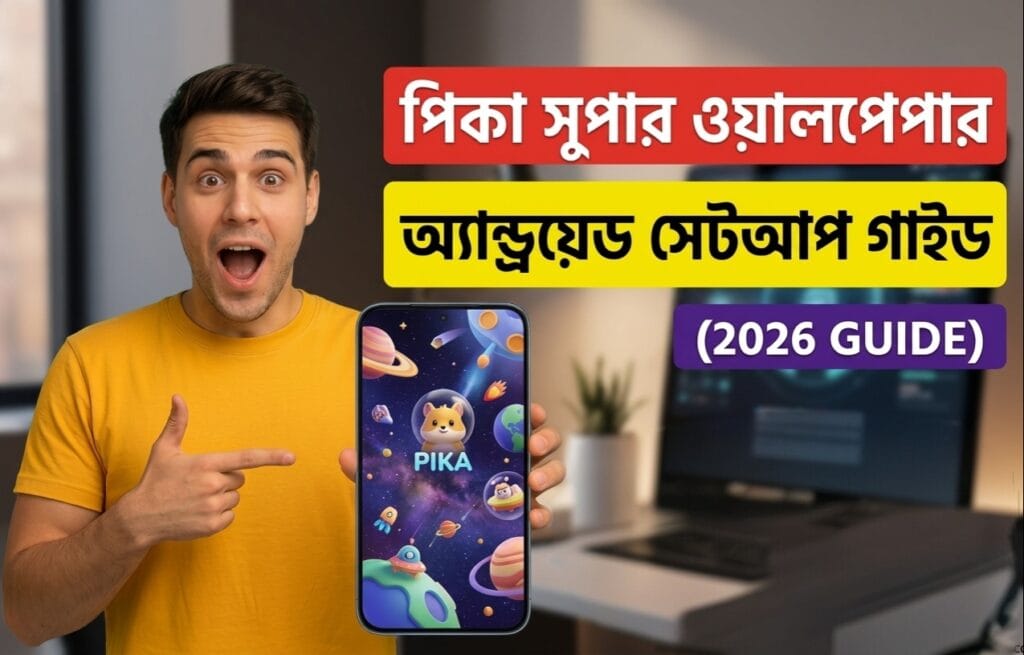
pika supar wallpaper animation app | WAA
The aesthetic appeal of a smartphone’s user interface is something almost every user wants to enhance. While icons and themes play a significant role, the wallpaper is arguably the most impactful visual element. The trend has shifted from static, low-resolution images to dynamic, interactive, and high-definition “Super Wallpapers.” Previously exclusive to certain phone models like Xiaomi’s flagship series, this premium feature is now accessible to all Android users via the Pika Super Wallpaper Animation App.
If you are tired of a boring, lifeless screen and want to give your phone a fresh, futuristic, and unique look, you are in the right place. In this comprehensive guide, we will explore everything about the Pika Super Wallpaper Animation App—what it is, how to set it up, and advanced tricks to maximize its potential without draining your battery.
What is the Pika Super Wallpaper Animation App?
The Pika Super Wallpaper Animation App is a third-party customization tool that allows Android users to apply intricate, animated, and sometimes interactive 3D wallpapers to their home and lock screens. Unlike traditional live wallpapers, which are often simple video loops, Pika’s Super Wallpapers are designed to be more detailed and immersive.
They often feature deep depth effects, complex animations that respond to touch, and even seamless transitions when unlocking the phone. The app acts as a vast library, offering various themes ranging from abstract space designs to stylized anime and game characters. It bridges the gap between premium phone-exclusive features and the average Android device.
Key Features of Pika Super Wallpaper Animation App
1. High-Definition 3D and Live Animations
The standout feature of this app is the quality of its assets. Pika offers wallpapers that are not just animated but rendered in high resolution with impressive 3D depth. The animations are smooth, making the interface feel modern and lively.
2. Deep Interactivity
Many of the wallpapers are more than just a moving background. They react to your touch and phone movement. Swiping across the screen might rotate the 3D model, or tapping a specific area might trigger a unique animation. This makes the wallpaper feel like a part of the OS, not just an overlay.
3. Diverse Wallpaper Library
The app boasts an extensive and regularly updated catalog. Whether you prefer minimalist designs, complex spatial environments, anime aesthetics, or futuristic tech themes, there is something for everyone. This variety ensures your screen setup never gets old.
4. Customization Options
Beyond selecting a wallpaper, Pika allows for various tweaks. You might be able to change color palettes, adjust the speed of animations, or even combine elements to create a unique hybrid wallpaper.
How to Setup Pika Super Wallpaper Animation App on Android
Setting up Pika Super Wallpaper is straightforward, even for beginners. Here is a step-by-step guide to get you started:
Step 1: Installation and Permissions
First, download and install the app from the reliable source. Once installed, open the app. The first thing it will ask for is a few essential permissions. This is crucial: you must grant permissions for “Storage” (to save downloaded files) and, importantly, the ability to “Display over other apps” or “Draw over other apps.” This permission is what allows the animated wallpaper to function correctly, especially on the lock screen.
Step 2: Browsing and Downloading a Wallpaper
Navigate through the app’s user interface. You will see different tabs for popular, new, and categorized wallpapers. Spend some time browsing until you find one you like. Click on the thumbnail. You will see a “Download” button. Depending on the complexity and resolution, the download might take a moment. Ensure you are connected to Wi-Fi to save mobile data.
Step 3: Setting the Wallpaper
After the download is complete, the “Download” button will typically change to “Apply” or “Set Wallpaper.” Tap this. A standard Android dialog will appear, asking if you want to set it for the “Home Screen” or “Home and Lock Screen.” For the full Super Wallpaper experience, we highly recommend selecting “Home and Lock Screen.”
Step 4: Configuring Lock Screen Settings (If Prompted)
Some advanced wallpapers require you to enable specific settings within your phone’s Accessibility or Lock Screen options to get the unlock transition effect. Pika is good at providing on-screen prompts if these steps are needed. Just follow the clear, on-screen instructions.
Tips to Manage Battery Life with Pika Super Wallpaper Animation App
The most frequent question users ask about any dynamic wallpaper app is about battery consumption. Yes, moving wallpapers do consume more power than static ones. However, you can use Pika without your battery dying by lunchtime with a few tricks:
1. Avoid Complex, Fully 3D Wallpapers
While the full 3D, interactive space station might look amazing, it requires more CPU and GPU resources. For daily use, opt for less complex, partially static, or abstract live wallpapers that consume less power.
2. Lower the Frame Rate (If Option Exists)
Check the app’s internal settings. Some advanced wallpaper apps allow you to set the frame rate of the animation. If possible, lower it from 60fps to 30fps. The battery savings are significant, and the animation will still look decent.
3. Turn Off Accessibility Services
Some complex unlock animations rely on accessibility services. If you feel your battery is draining too fast, disable this service for Pika in your phone settings. You will lose some fancy transition effects, but your battery will thank you.
4. Optimize the App in Android Battery Settings
Go to your phone’s Android settings -> Apps -> Pika Super Wallpaper -> Battery. Make sure it is set to “Optimized” or even “Restricted” if you only want it to run when it is actually being displayed as a wallpaper.
Troubleshooting Common Issues
Issue 1: Wallpaper Not Showing on Lock Screen
This is the most common problem. The fix is almost always related to permissions. Ensure you have granted the “Display over other apps” permission. Also, check if your phone’s default system theme is blocking custom wallpapers from appearing on the lock screen.
Issue 2: Live Wallpaper Disappears or Stops
If the wallpaper disappears and reverts to a black screen or your default, your phone’s aggressive RAM management might be force-closing Pika. To fix this, open your recently used apps list, find Pika, and tap the icon to “Lock” or “Pin” it so the system doesn’t kill it.
Conclusion
Customizing your Android device is a deeply personal process, and the Pika Super Wallpaper Animation App is an excellent tool for it. It brings the premium, smooth, and interactive look once reserved for top-tier flagships to a wide variety of devices. By following the setup guide and managing battery consumption, you can enjoy a stunning, dynamic screen that reflects your style. Give it a try and transform your phone into a visual masterpiece.
Internal Link: You can check out our other guide on [Best Viral Wallpaper App Setup Tricks in Android] for more creative tips.
External Link: For more technical discussions on Android launchers and themes, visit the [official Android developer guidelines].
App Download Link: